.svg)
Settings and Configuration
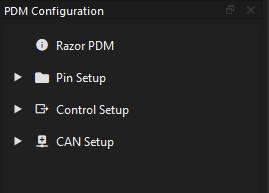
All PDM settings may be accessed through the configuration tree. See Menu>PDM>Configuration OR Right click>PDM Configuration Tree to open the tree.
-
Grayed-out items are shown as such according to their configuration.
-
Many Items may be renamed - double click an item in the setting tree to rename it (requires Enter Key to save name)
PDM Configuration Menu
Settings Boxes and Visualizations
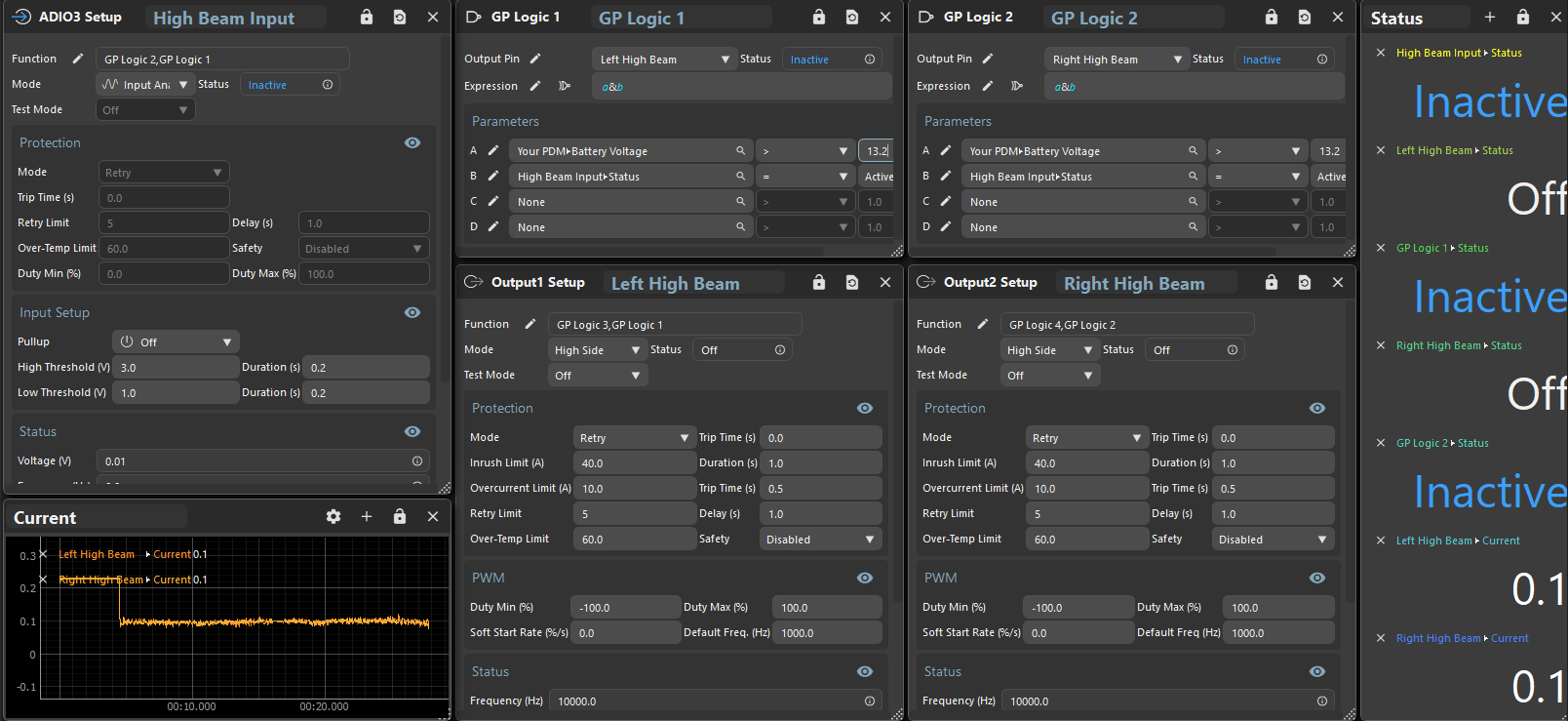
Most items - Functions, Pins, and Visualizations, can be renamed to make your configuration/purposes clear. Remember that these require the Enter Key to save your changes.
Re-nameable Functions, Pins and Visualizations
Layouts
PDMLink is a graphically oriented system. It is encouraged that users take a small amount of time to create useful layouts that make the configuration flow easier each time.
-
Layouts are saved along with the PDM configuration inside the .pdmc (PDM configuration) file.
-
Layouts may also be exported for sharing independent of the configuration via the Menu>View>Layout>Export option.
-
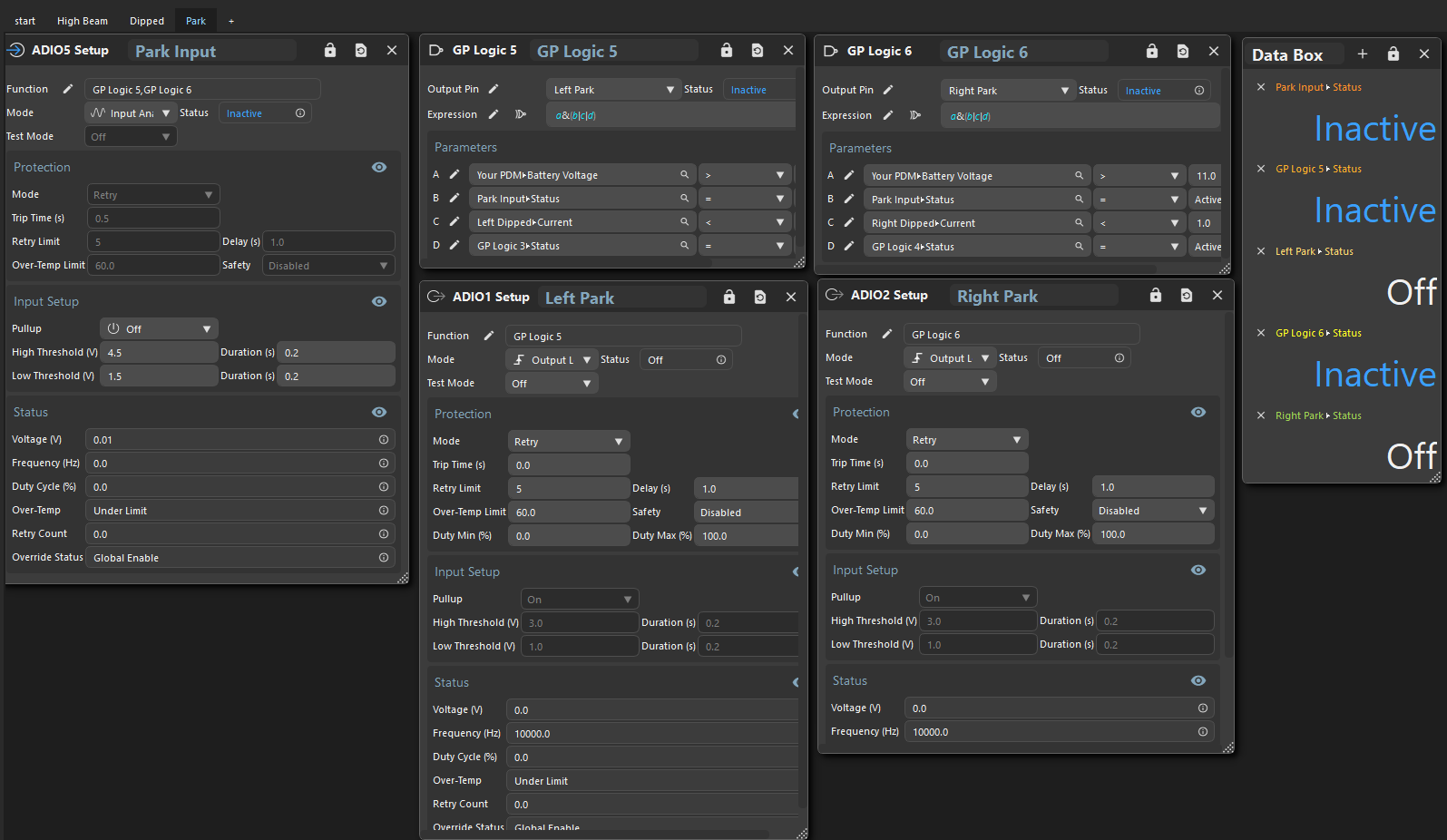
Use Tabs to simplify workflows - less on a page is better
-
Multiple Layouts can be saved directly within the software use View>Layout>New to create new layouts. Use View>Layout>Switch to flip between them.
Example of Tabbed Layout
Cut Copy Paste
Settings Boxes and Visualizations support some features to help make layout building easier.
-
CTRL+c, CTRL+x CTRL+v are supported on all settings visualization views
-
Multi-select (CTRL+Click) is supported for drag and cut/copy/paste
-
Cut/Copy Paste operations are supported between tabs, layouts and instances of the application
Themes
User configurable colour/font themes are coming soon.
User Preferences
Use Help>App Preferences to access Application settingsq.
|
Colour Theme |
Sets the colour scheme for the application |
|
Snap Grid |
A value in pixels, to which user settings boxes and visualizations will snap |
|
Snap Gap |
A value in pixels, adds a gap between user settings boxes and visualizations |
|
Plot Length |
The time to show data for in plots, in seconds. Very long times may result in performance issues. |
|
Display Update Rate |
The number of seconds between display updates. Very short times may result in performance issues. ⭐Does not affect logging rates. |
|
Popup Fade Timer |
Time before non-critical message boxes disappear. |
|
Opacity |
Sets the opacity of settings boxes and visualizations (10-100%) |
|
Show Units |
Show or hide units in all areas of the UI |
|
Open Sidebar on Connect |
Opens the PDM Configuration menu on connect. |
|
Allow Duplicates |
Allows duplicate settings boxes (duplicated across tabs), or if disabled, snaps to the open settings box no matter which tab it is on. |
|
Connect on Start |
Connect to a PDM when the application opens. |
|
Auto Connect |
Automatically connect to a PDM, if one is plugged in. |
|
Language |
TBD |