.svg)
Auto control unlocks some very handy tuning strategies or features that may not be obvious at first, so below is some examples of what you can do with auto control to expand the capabilites of your vehicle.
Example of multiple shift tables
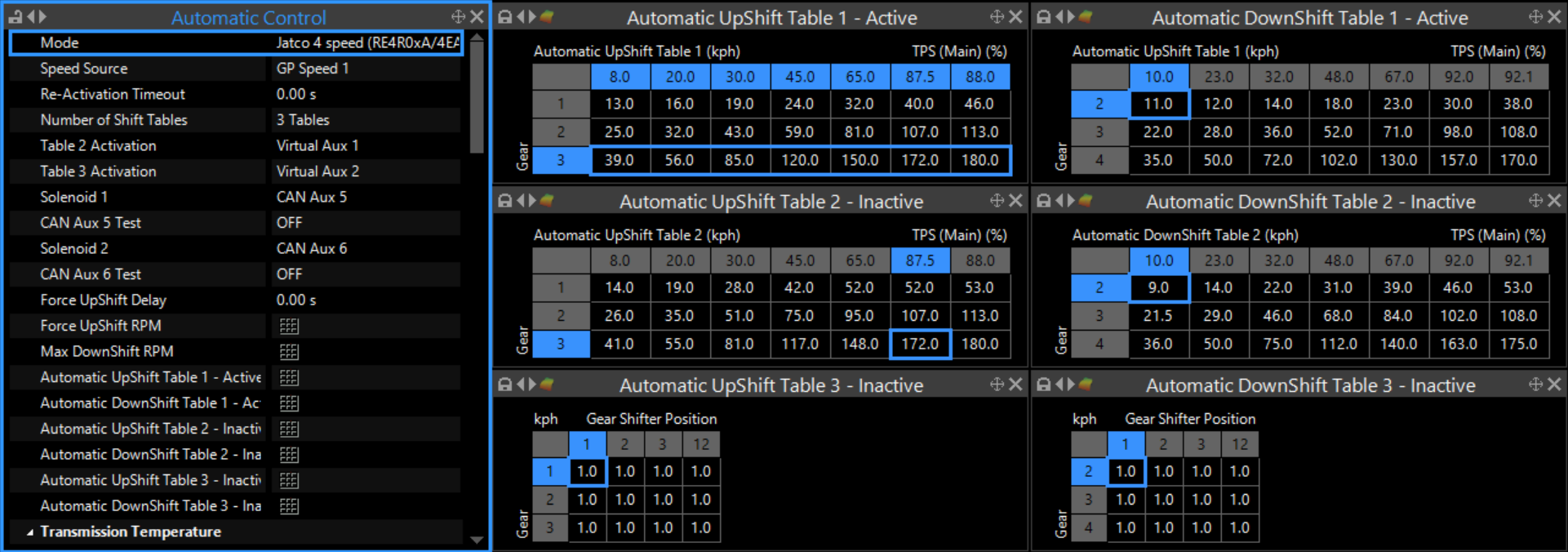
Some vehicles from factory have user selectable ‘Power’ or ‘Sport’ modes, low traction modes and so on. These can be recreated using multiple shift tables in PCLink, there are up to 3 you can utilise.
You can trigger the different shift tables with anything inputs such as DI’s, or a Can Aux etc.
Power or sport modes from factory typically hold the gears until a higher RPM than regular shifting, you can tune a table for twisty roads or track work.
A low traction, or “snow hold” mode might have a first gear lockout, so you start in 2nd gear, and you can trigger other things from the same input such as force full 4WD lockup if you transmission has it equipped.
Or you can just have 3 slightly different shift table tunes to suit different driving styles.
Example of manualised shifting using the stock shifter
For vehicles equipped with shifter/range selectors that can select all gears, you can use the selector in a manual mode, without having to add up and down shift switches.
It is important to note the range selectors often hydraulically limit which gears are available, so it is vital you set the target gear to a gear the range selector allows from factory. For example, do not allow the software to target 4th, while in selector range 3, but you can target 2 or 1 without issue.
To set up the shift tables to do this behaviour, you can change the x axis of the table to “Gear Shifter Position”, and enter 1’s or 0s’s in every cell, as below:

By setting the cells to all 1, instead of 0, the software will shift back to 1st when the vehicle is stopped. If you enter all 0’s, it will remain in whatever gear you select regardless.
The software will still respect limits you have defined, such as “Max DownShift RPM” when set up in this way, which will prevent over-revving the engine if set up correctly.
Manual shifting using buttons or paddles
For some application it is desirable to have the ability to request shifts with user inputs, either as a way to pick a better gear occasionally or as a way to take complete control of the gear selection.
Manual shifting override can be added to any transmission we support. You can do so with the likes of retrofitting paddles, steering wheel buttons, or even by using a CAN keypad.
The manual inputs (M-, M+ and M) are all received as part of the Gear Shifter Position and so they need to be setup correctly in the Gear Detection function. It is important that the M+ and M- inputs don't override the Park, Reverse or Neutral inputs and that the full manual mode (M) can only override D and no other Gear Shifter Positions.
To set up the button input, follow the PCLink help file for Chassis and Body→Gear Detection.
Once the inputs have been defined, you can choose your behaviour with Chassis and Body→Manual Control.
If an M+ or M- input is received but the shifter is not in the M position, then a temporary manual mode is entered.
The reactivation timeout dictates how long it waits after the last M+ or M- input, before it reverting back to using the current shift table. You can use the Coast APS/TPS setting to prevent starting the reactivation timer, and hold it in manual mode below a given APS/TPS, useful for engine braking down long inclines without having the transmission revert back to the shift table while off throttle for an extended period of time.
Setting this up correctly can mean that from D, you can command a manual downshift, and it will hold that lower gear for the duration of the deceleration until you resume throttle input, at which time the reactivation timer will start.
Example of a towing mode
When towing, care needs to be taken to not overheat your transmission and trans fluid. One of the primary ways in which your trans temp is heated is by torque converter slip. So naturally reducing this TC slip can help reduce trans temps while towing.
In the torque convert settings, there is the “Force Enable” setting, which can be set up to be triggerd by a switch, virtual aux, math block etc.
An example of a towing mode might be a manualised shift mode as above, or a shift table tuned to keep you in the power band, combined with a switch to enable TC Lock. Force Enable still will disengage the TC Lockup solenoid while shifting, then immediately reapply following the normal lockup settings for a smooth lockup after the shift is complete.
You could also set up triggers to automatically apply Force Enable, when trans temps exceed a certain value for example.
Example of an offroad mode
With the above examples laid out, you can combine aspects of them to give you an offroad mode
You can trigger many aspects off a single input, or for example, you can:
-
Trigger it from a low range switch if equipped
-
Use it to trigger the M position for your shifter from example 3, or trigger a manualised shift table from example 2
-
Or use a low range switch to trigger a different shift table
-
If equipped with a computer controlled centre diff or transfer case, trigger 4WD lockup/engagement.
-
Force the torque converter into unlock
-
If your Link ECU is also controlling your engine, you could trigger a different e-throttle map, if equipped